
WhatsApp has become a practical communication channel for many small businesses. Customers use it to request prices, confirm orders, share addresses, send product photos, and ask for support. The speed is useful, but important information can easily become buried as conversations grow.
A quotation may appear near the beginning of a chat, while the final quantity and delivery address are confirmed days later. If another employee takes over the customer, finding the complete picture may require scrolling through hundreds of messages.
A WhatsApp Chats Exporter can help move selected conversations into HTML, Excel, or CSV files. This does not replace a CRM or formal record-management system. It gives small businesses a more manageable way to review, organise, and retain the information already contained in their chats.
Why Customer Information Gets Lost in WhatsApp
Messaging apps are designed for conversations rather than structured customer records.
Important Details Are Spread Across Long Conversations
A customer interaction rarely happens in one neat exchange. Someone may ask about a product, leave the conversation, return with new requirements, and later confirm an order.
The relevant information may include:
- product names and quantities;
- prices or quotations;
- delivery details;
- photographs and documents;
- payment discussions;
- support requests;
- promised follow-up dates.
When these details remain scattered throughout a long conversation, employees can overlook changes or rely on outdated information.
Team Handoffs Become More Difficult
Small companies often have several people handling sales, customer service, and operations. When one employee is unavailable, someone else may need to continue the conversation.
Without an organised record, the new employee must read the entire chat to understand what has already been discussed. This takes time and increases the possibility of asking the customer to repeat information.
Exporting the relevant period can make the conversation easier to review during a handoff. Employees can see the original messages while also creating a separate summary of confirmed details and outstanding tasks.
Screenshots Do Not Create Searchable Records
Screenshots are useful for capturing one important message, but they are not suitable for organising a complete customer history.
The text may not be searchable, messages can appear without enough context, and several screenshots can easily become separated or stored in the wrong folder. They also make it difficult to filter information by date or prepare data for another business tool.
Structured files provide more flexibility than a folder filled with images.
What Small Businesses Should Export
Exporting every conversation and attachment is rarely necessary. Businesses should start with a specific purpose.
Choose Relevant Customer Conversations
Identify which chats contain information that needs to be reviewed or retained. These might include completed orders, ongoing projects, unresolved customer service cases, or supplier discussions.
Employees should confirm that they have permission to handle the selected conversations. Personal chats or unrelated information should not be included simply because they are available on the same account.
Set a Useful Date Range
A defined date range keeps the export focused.
For example, a company may only need messages connected to one order, project stage, or reporting period. Exporting years of history produces a larger file and adds information that employees must search through later.
Check the beginning and end of the relevant activity before selecting the range. Important context may appear shortly before the first order message or after the apparent completion date.
Decide Whether Media Files Are Necessary
Images, videos, voice messages, and documents can be essential to understanding a conversation. A customer may send a photograph of a damaged item, while a supplier may share a specification sheet.
Media also increases file size and may contain sensitive information. Include it when it supports the purpose of the record. If text alone provides enough context, excluding media can make the export easier to store and review.
Choosing the Right Export Format
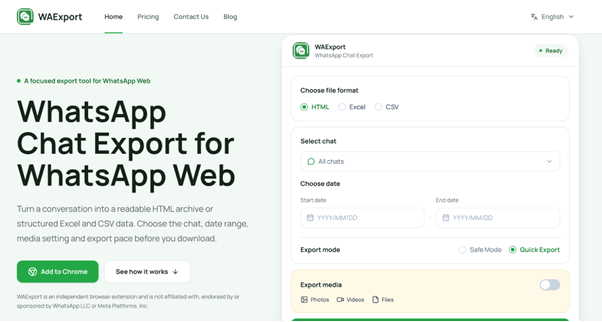
WAExport supports HTML, Excel, and CSV. Each format is useful for a different task.
HTML for Reading Complete Conversations
HTML is suitable when employees need to read a conversation in sequence. It can be opened in a browser and provides a document-style archive outside WhatsApp.
This format works well for reviewing customer disputes, project discussions, support cases, or other situations where context matters more than data analysis.
Excel for Sorting Customer Information
Excel is useful when messages need to be searched, sorted, or classified.
A business can add working columns for customer type, product, market, enquiry category, responsible employee, and follow-up status. Filters can then help employees locate particular dates or groups of messages.
Keep the original export unchanged. Add classifications and internal notes to a separate working copy so the source record remains available.
CSV for Moving Structured Data
CSV is a flexible format that can be opened in spreadsheet applications and imported into many reporting or customer-management systems.
However, compatibility is not automatic. A CSV file may need to be cleaned and adjusted before it can be used elsewhere. The business should check the destination system’s requirements for column names, dates, phone numbers, and character encoding.
How to Organise Exported WhatsApp Messages
The value of an export depends on what happens after it is downloaded.
Separate Customer Requests from General Conversation
Not every message belongs in a business summary. Greetings, informal discussion, and repeated questions may not need to be transferred into a working record.
Review the exported conversation and identify the information that affects the customer relationship or transaction. This may include confirmed requirements, delivery instructions, changes to an order, and promises made by the business.
The full export should remain intact while the summary is created separately.
Identify Orders and Follow-Up Tasks
Long conversations often contain tasks that were never entered into a project or customer-management system.
Look for messages that require action, such as:
- sending a revised quotation;
- confirming inventory;
- checking delivery status;
- providing a document;
- arranging a call;
- responding to a complaint.
Assign each task to an employee and give it a clear status. Exporting messages is useful, but it does not automatically create accountability.
Keep the Original Export Unchanged
Download errors, accidental edits, and spreadsheet changes can alter a working file.
Keep one original version in an approved storage location. Use copies for filtering, classification, redaction, or import preparation. This makes it possible to return to the original conversation data if a working file becomes incomplete.
Preparing Chat Data for Business Tools
Businesses that want to use exported messages in a CRM, spreadsheet, or reporting system should prepare the data carefully.
Clean and Standardise Spreadsheet Fields
Before importing the file, review:
- dates and time formats;
- customer names and identifiers;
- phone-number formatting;
- duplicated rows;
- blank fields;
- special characters;
- unnecessary personal information.
Standard fields make the data easier to search and reduce import errors.
Test CRM Imports with a Small Sample
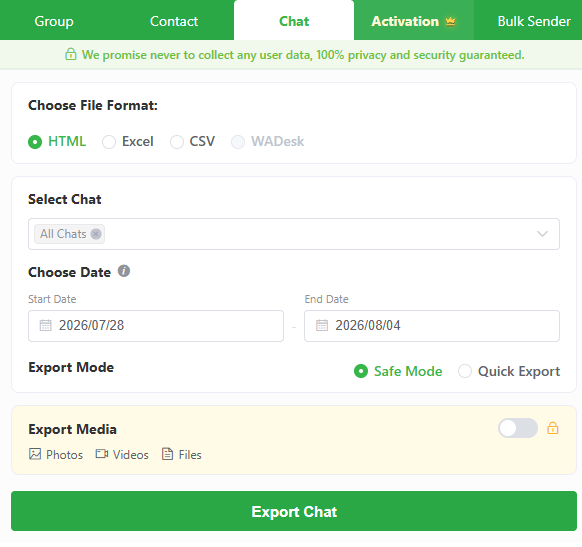
The option to Export WA Messages as Excel or CSV can help prepare selected data for an internal system, but the exported file may not match that system’s required structure.
Test a small sample before importing a complete dataset. Confirm that messages appear in the correct fields and that dates, phone numbers, and customer identifiers have not changed.
Verify Information Before Acting on It
Chat data may contain unconfirmed requests, outdated addresses, or prices that were later revised.
Employees should not assume that every exported message represents the final agreement. Important information should be checked against the latest conversation, order system, invoice, or other approved source before decisions are made.
Protecting Customer Information
Exported chats can contain personal and commercially sensitive data.
Restrict Access to Exported Files
Store files in approved locations and limit access to employees who need the information. Avoid leaving exports in personal download folders, unrestricted shared drives, or public links.
Remove Unnecessary Personal Data
Before sharing or importing a working copy, remove information unrelated to its purpose. This may include personal addresses, payment details, private photographs, or messages involving other individuals.
Set a Clear Retention Period
Exported conversations should not be stored indefinitely without a reason. Businesses should define how long records are needed, who is responsible for them, and when they should be deleted.
Building a Repeatable Customer Record Workflow
A practical workflow begins by selecting the right conversations and dates. The business then chooses HTML for readable archives, Excel for sorting and review, or CSV for structured data work.
After export, employees should verify the file, identify confirmed information and follow-up tasks, and store the original separately from working copies. Access controls and retention rules should be applied consistently.
Used this way, WhatsApp chat exports can help small businesses turn scattered customer conversations into records that are easier to review, share, and act on.